In some companies it is required that tracking information of a product that is manufactured through a production or assembly process can be automatically allocated according to certain criteria.
Therefore, we introduced new fields on the item tracking code card. Through this fields it is possible to set how the automatically allocation of or lot and serial no. (with BC 18 also for package no.) should work.
These fields have the following options
Field "Automatic Serial No. from":
Field "Automatic Lot No. from" :
Field "Automatic Package Tracking" :
For an explanation of the use of Transfer from Main Component please visit: Lot-or-Serial-No. form BOM-Component to output item
If you choose this option the product that you want to manufacture through a production or assembly order will automatically pull the next available number of the No. Series. for serial or Lot No.
You will need to set up one item tracking code and one item before you can use this feature in a production or assembly order
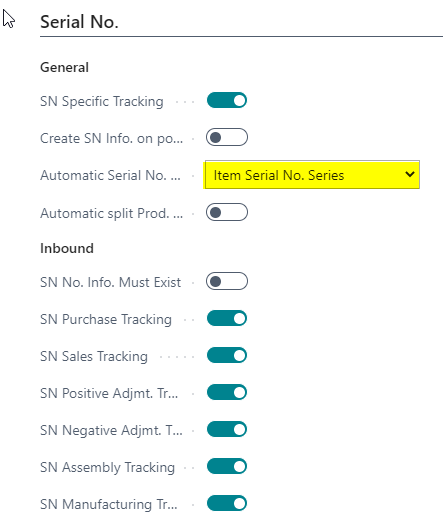
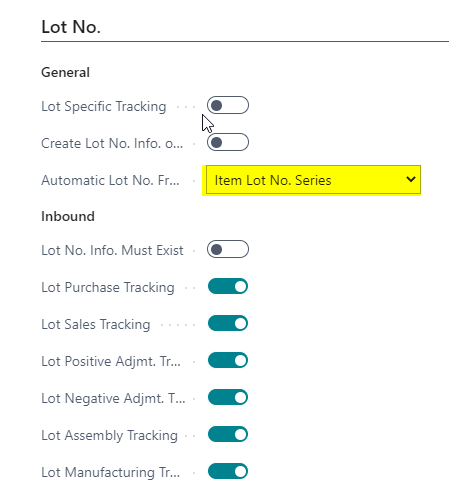
Make sure the item tracking code you configured is also in the item you want to produce / assemble. You may also want to set Serial and Lot Nos.

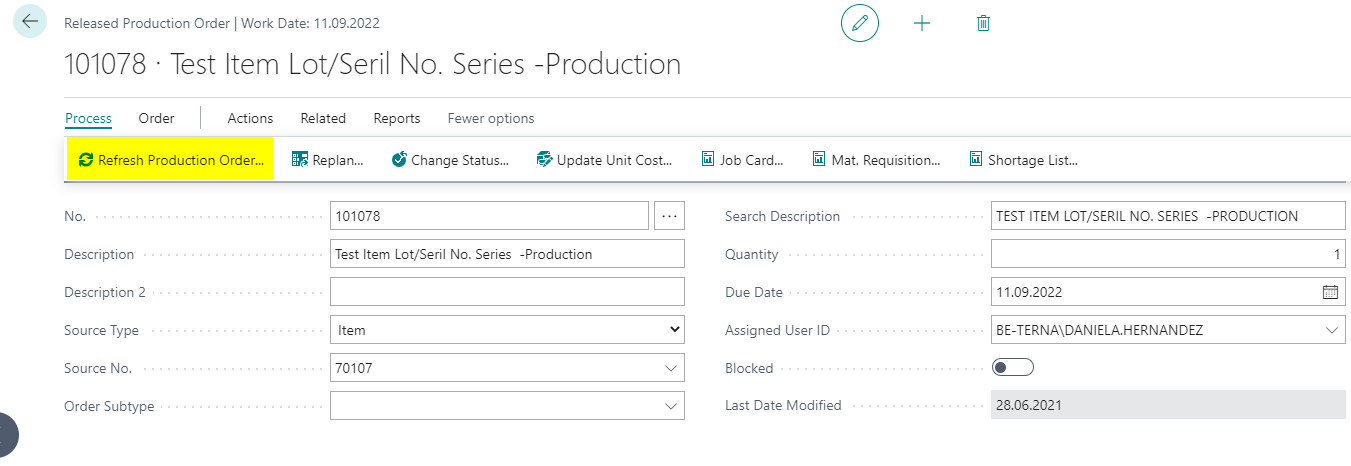
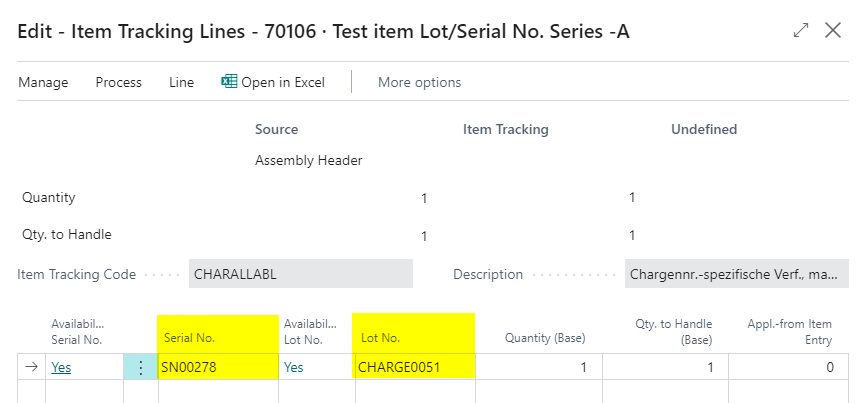
A Serial No. or Lot. No. from the choosen No. Series will be pulled when you refresh product order or validate Quantity to Assemble in an assembly order. That means you don't have to worry to activate a button in order to get tracking information done.
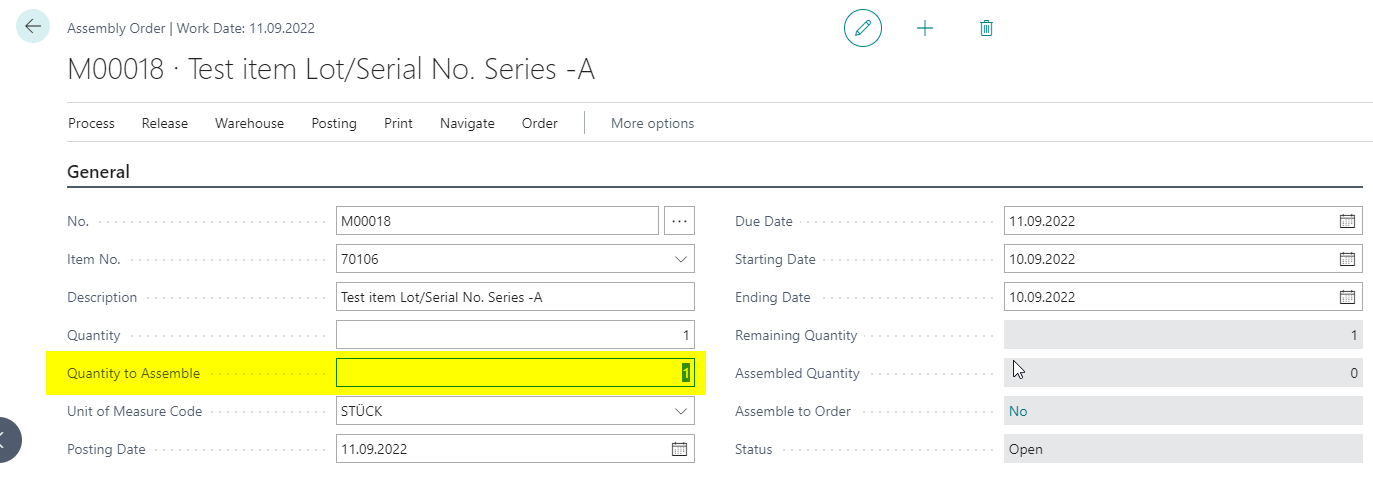 3. Check item tracking lines
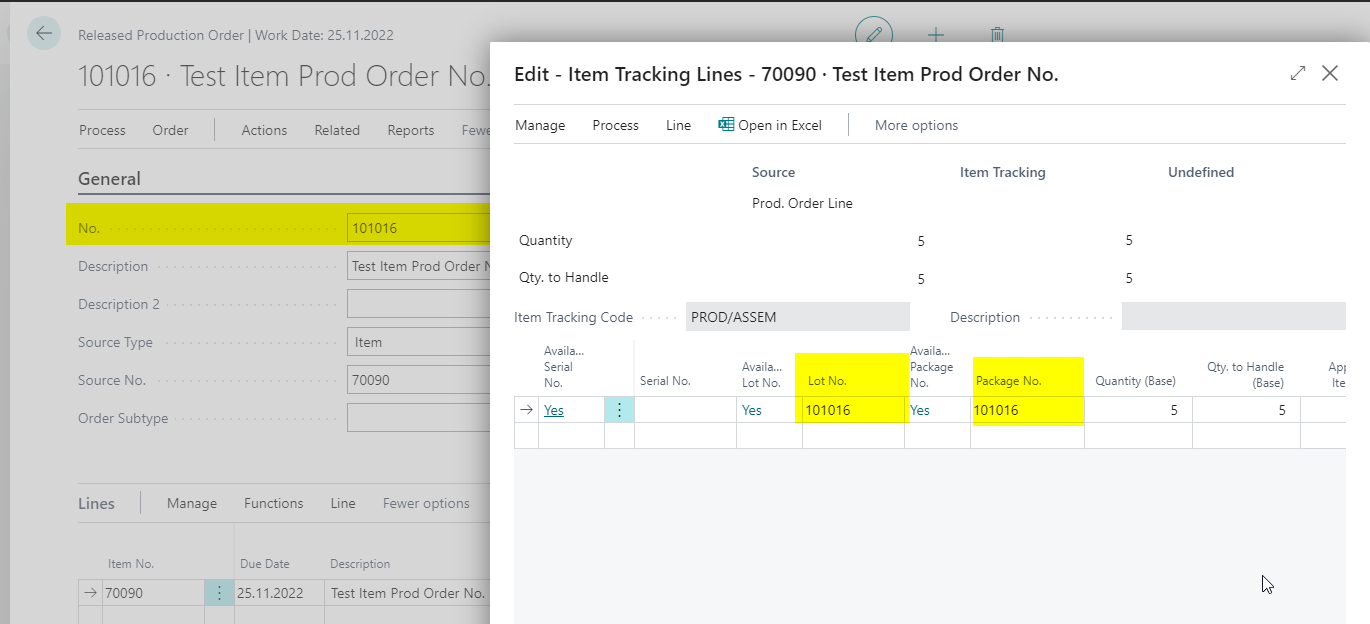
With this Option you can automatically transfer the production/Assembly Order No. as Lot. No. of the product you want to manufacture through a production or assembly order.
In this case you will also have to set up one item tracking code and the item you want to manufacture before you use the feature in a production or assembly order.
Field Automatic Package from is only visible if you activate tracking by package number. To do so go into the page Feature Management and activate this new feature.
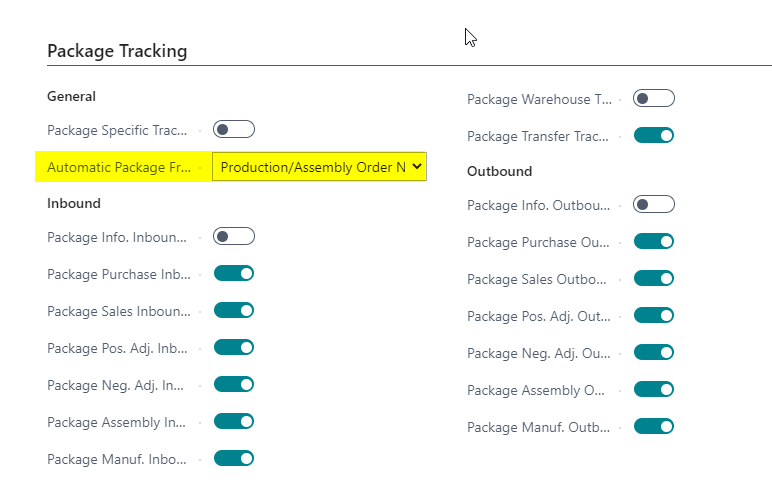
Make sure the item tracking code you configured is also in the item you want to produce / assemble
the production/Assembly Order No. will automatically be allocated as Lot No. / Package No. when you refresh your production order or validate the quantity in an assembly order. That means you don't have to worry to activate a button in order to get tracking information done.